StoreKit 2 tutorial: implementing in-app purchases in a SwiftUI app
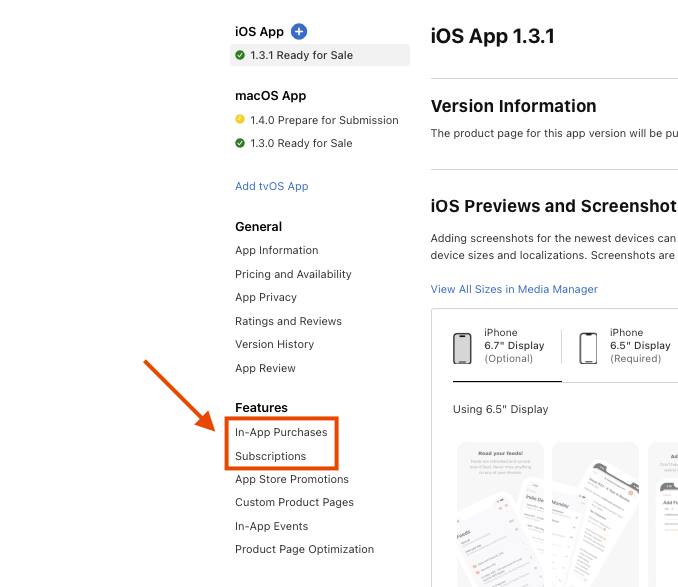
App Store Connect dashboard pointing at the location on of “In-App Purchases” and “Subscriptions”
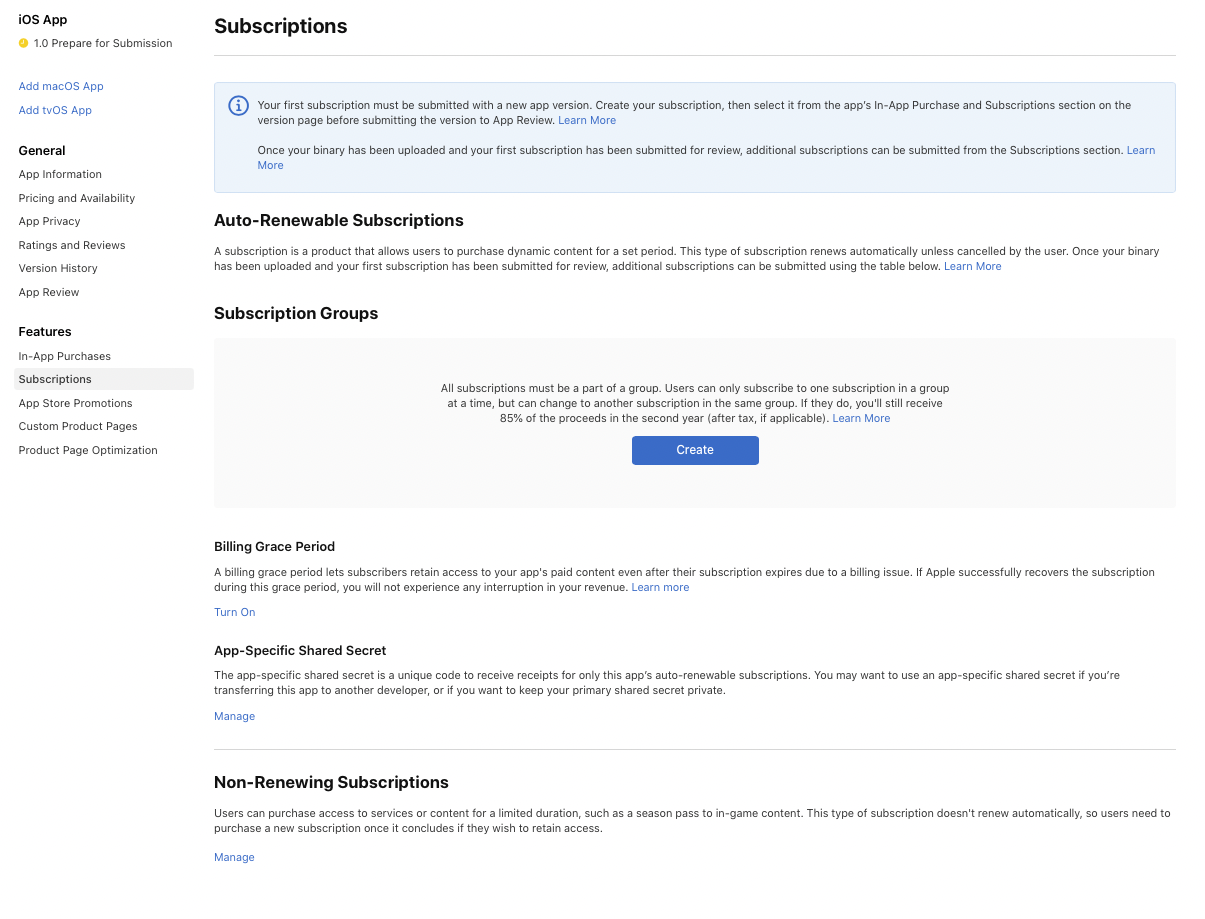
App Store Connect screen to add auto-renewable and non-renewing subscriptions

App Store Connect screen to add consumable and non-consumable in-app purchases
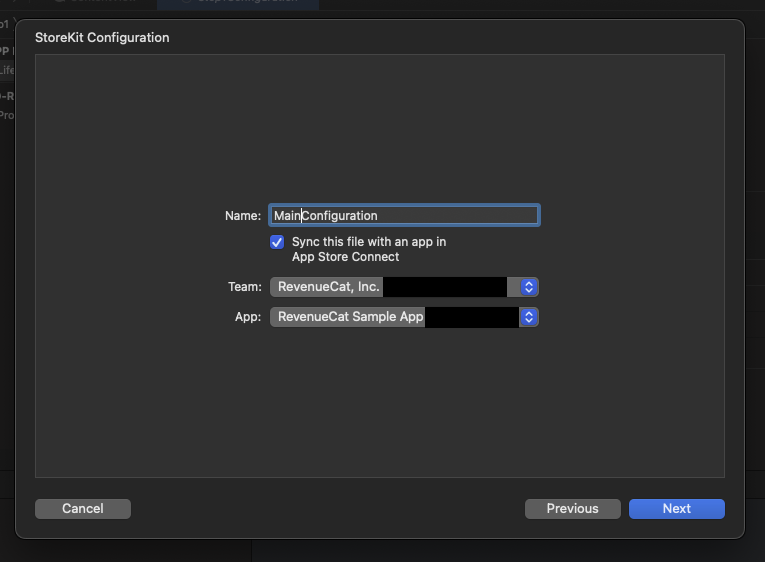
StoreKit configuration
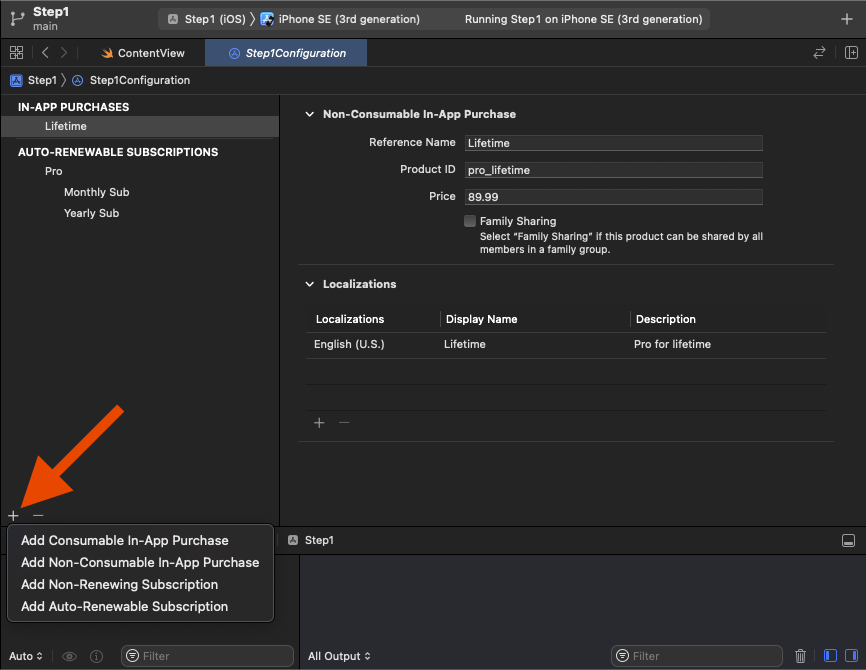
Add StoreKit products
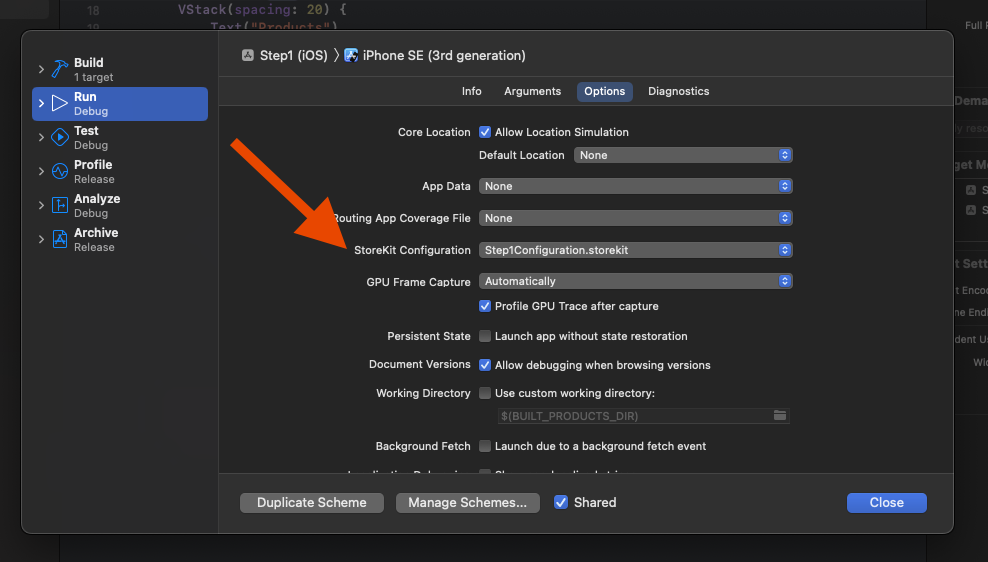
Enable the StoreKit Configuration File
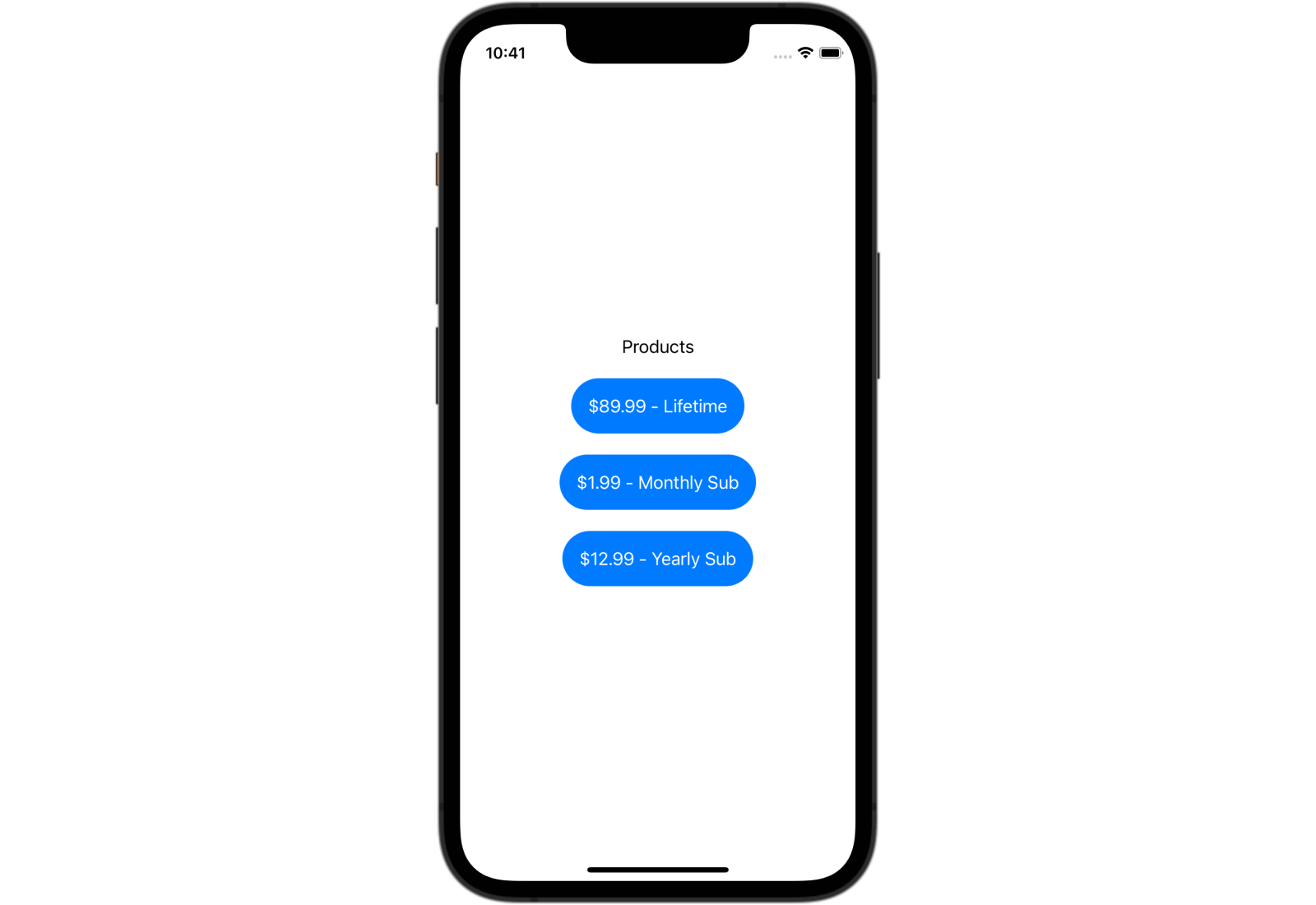
The example paywall
| Case | Description |
|---|---|
| Success – verified | The in-app product was successfully purchased. |
| Success – unverified | The purchase was a success but failed StoreKit automatic verification checks. This could be due to a jailbroken device, but the StoreKit documentation is currently unclear on this. |
| Pending | This is caused by either Strong Customer Authentication (SCA) or Ask to Buy. SCA is an additional factor of authentication or approval by a financial authority before this purchase is made. This might be done through an app or through a text message. After approval, the transaction will be updated. Ask to Buy is a feature enabling a child to ask to purchase something from a parent or guardian. The purchase will be held in a pending state until the parent or guardian approves or denies the purchase. |
| User Canceled | This usually does not need to get handled as an error state, but it is sometimes good to know. |
| Error | This result is either Product.PurchaseError or StoreKitError and could be due to not having an internet connection, App Store being down, payment errors, among other causes. This . |
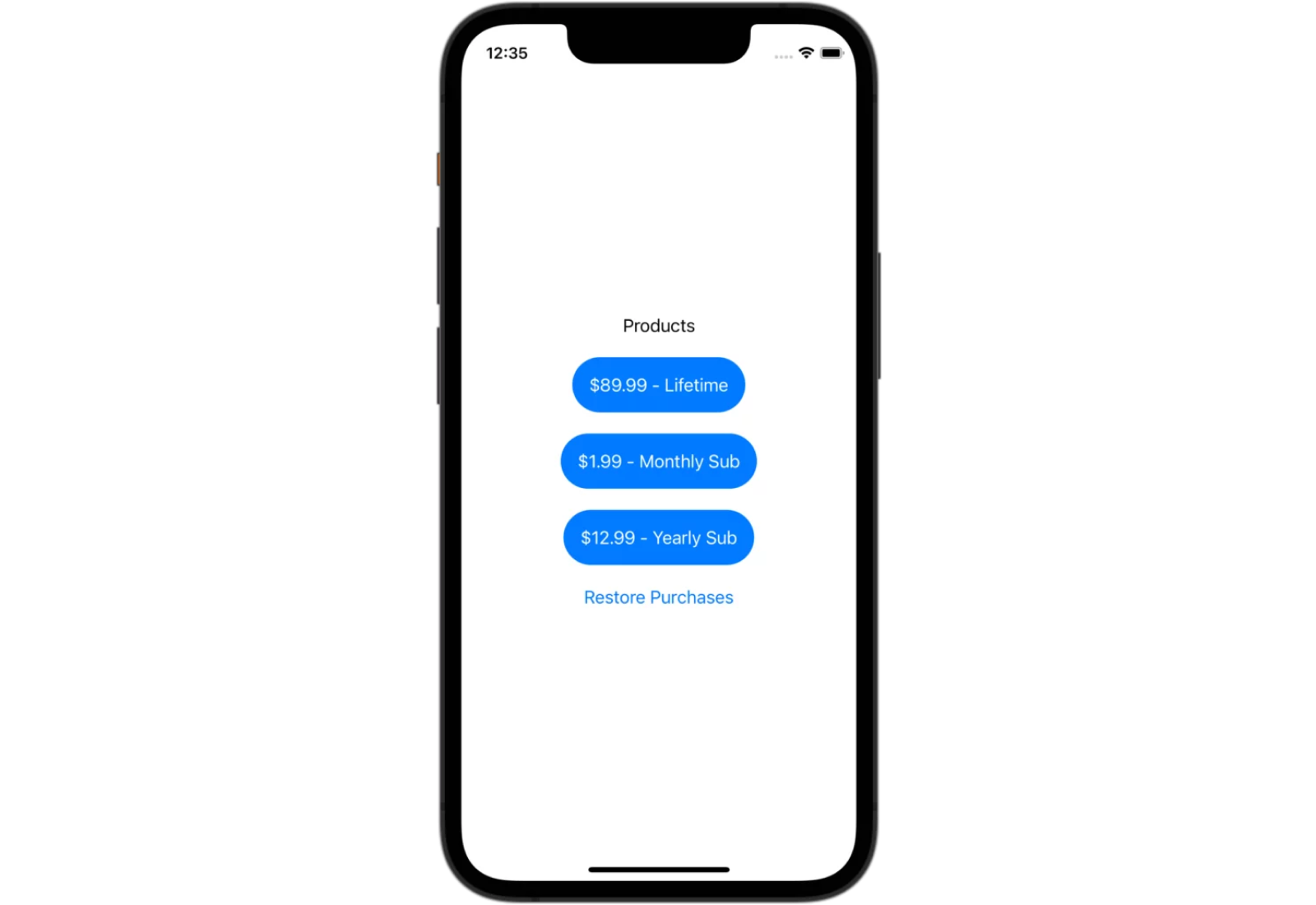
The full implementation up to this step can be seen here.
The next section of this tutorial will cover a little bit of what it takes to implement StoreKit 2 with a custom server backend. Continue reading to find out if that is the best solution for you.